 TagTidy
First decide whether a tag is unused, used on one product, or simply no longer useful to your business. Check its product assignments and dependencies, then remove it only from the intended products. Never treat a failed product-count request as evidence that a tag is unused.
Unused and single-use are different findings
A single-use tag is assigned to one product. That does not make it an error: it might identify a sample, a made-to-order item, or an operational exception. An obsolete tag can still be assigned to many products even though a campaign has ended.
An unused-tag finding concerns a value for which the audit finds no product usage. Before acting, check the result and any errors or limits reported by the audit. Incomplete or unavailable counts should remain unknown, not become a reason to remove data.
| Situation | What to investigate | Possible decision |
|---|---|---|
| One product uses the tag | Does that product need a specific rule or label? | Keep it if intentional |
| Many products use an old campaign tag | Is the campaign over, and what still references it? | Plan a controlled removal |
| No usage was found | Was the count successful and the audit complete? | Verify before removing |
| A tag reappears | Is an import, app, or workflow adding it? | Fix the source first |
Verify the products and the rules
Use Shopify admin to inspect products with the value you are reviewing. If the tag drives a collection or workflow, check that dependency separately. A tag can be unwanted in the catalog while its name is still present in an automation that will add it again.
For a seasonal cleanup, create a list of the exact values to retire and keep a record of their assignments. Decide whether affected collections should be archived, updated to a new rule, or kept as they are. Do not rely on tag removal to make those business decisions for you.
- Check a representative product before and after the update.
- Review automated collections and connected systems using the value.
- Retain labels with a documented purpose, even when they are uncommon.
Example: retire clearance-2025 and keep Archived
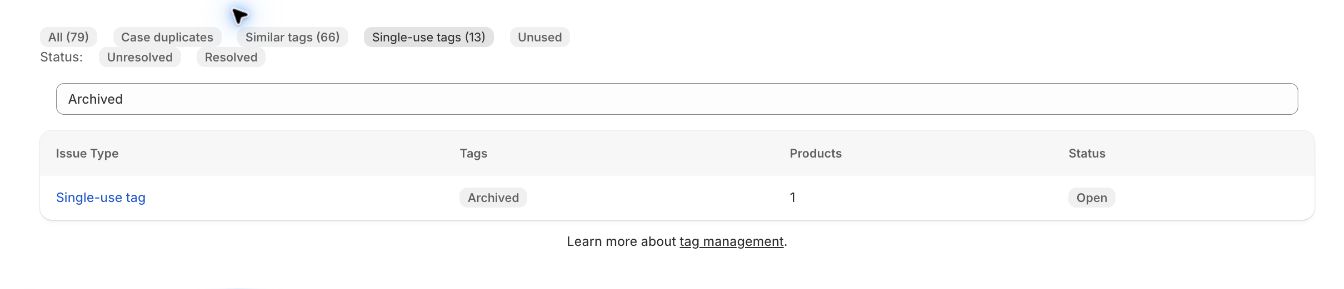
In this illustrative cleanup, a completed clearance campaign used clearance-2025. Separately, a single product uses Archived for an internal process. Retiring the campaign does not establish that Archived should be removed.
Write a small change log before selecting products. If a collection still uses the old campaign condition, decide its replacement rule or retirement separately; removing product tags does not edit that rule.
| Value | Dependency review | Planned decision |
|---|---|---|
| clearance-2025 | Old promotion finished; collection and automation reviewed | Remove from the recorded campaign products |
| Archived | One product; operational purpose not yet established | Keep while investigating |
| clearance | Active campaign or collection still uses it | Keep the active value |
Remove the exact value with a selected-product bulk action
On desktop, open Products and select only the products in the retirement list. Open the … menu, choose Remove tags, select clearance-2025, and save. For one product, open it, remove the tag with its x control, and save.
TagTidy also offers Remove tag on eligible single-use or unused findings, followed by a confirmation. That action concerns the finding’s affected products. Do not use it as a substitute for selecting a small pilot set in Shopify.
- Keep a record of the original assignments and the exact value being retired.
- Remove the value from a small, selected product group first.
- Reopen those products and confirm unrelated tags are intact.
- Verify the collection and automation changes in your retirement plan.
- Continue with the remaining intended products, run a fresh audit, and check again after the next supplier import.
Why does a removed tag keep coming back?
The product editor may not be the source of the tag. A supplier feed, import template, Flow workflow, or connected app may be adding the value during its next run. Repeatedly removing the tag without changing that source creates a cycle.
Compare the time the value returns with recent imports and automation activity. Ask the system's operator to update the naming rule. Then repeat a small cleanup and verify it after the next scheduled import or workflow run.
Use audit history as a review record
After the cleanup, run a new TagTidy audit and compare the findings with the changes you intended. Different findings can reflect product edits or imports since the previous run; they are not automatically evidence that an earlier mutation failed.
Keep the goal practical: useful product labels and predictable store behavior. Removing tags is not a substitute for keyword research, product descriptions, or a broader SEO review, and it does not guarantee more search traffic.
How this guide was checked
Instructions and examples reviewed by SHWRK.
- Removal steps were checked against Shopify’s current desktop documentation and the current TagTidy confirmation flow.
- Archived was observed on one development-store product in the October 15 capture. The clearance campaign and decisions in the table are illustrative, not a record of merchant changes.
Sources and further reading
Shopify behavior can change. Consult the current documentation and your store settings before making changes.
See where TagTidy fits
Review inconsistent Shopify product tags and affected products, then confirm merges or removals with TagTidy. Read practical tag cleanup guides.