 TagTidy
Start with a tag inventory, choose consistent names, and check which collections, filters, and automations use each value. Change a small group, verify the result, and continue. A tag's appearance or low product count alone is not enough reason to delete it.
Start with what the tags mean
A catalog can accumulate labels from supplier imports, previous staff, promotions, and apps. Two similar names may describe the same thing, or they may serve different operational purposes. Before merging anything, write down the intended meaning of each group.
For example, summer-sale could be a campaign label while summer describes a season. Combining them because they share a word would erase a useful distinction. Check a few affected products and the workflows that consume the value.
- Identify tags used for product attributes, campaigns, and internal operations.
- Record the owner or connected app for operational tags.
- Keep an export or other record of the original assignments before bulk changes.
Separate inconsistent names from intentional differences
Use a review list rather than a rule that deletes everything unusual. Near matches can be typos, but they can also be different product attributes. Shopify's matching behavior can treat some case and punctuation differences as equivalent; do not assume a spelling difference creates an independent collection rule.
| Finding | Example | Review before changing |
|---|---|---|
| Inconsistent naming | summer-sale and summersale | Which convention do staff and integrations expect? |
| Possible typo | cotton and cottton | Do the affected products really share this material? |
| Single use | sample-only | Is the tag intentionally specific to one product? |
| Seasonal label | clearance-2025 | Does a collection or automation still depend on it? |
Example: merge cottton into cotton without losing other tags
This illustrative import contains three products. First confirm that cotton and cottton both mean the same material; a similar spelling alone does not establish that. Keep sale, new, and other unrelated assignments intact.
The intended result is that all three products have cotton, none retains cottton, and the other tags are unchanged. Keep the original product-to-tag record so you can restore the assignments manually if needed.
| Example product | Before cleanup | Intended after cleanup |
|---|---|---|
| Canvas tote | cottton, sale | cotton, sale |
| Tea towel | cotton, cottton | cotton |
| Apron | cotton, new | cotton, new |
Check collections, filters, and automations
Changing a product tag can affect more than the product editor. Check automated collections, storefront navigation or filtering, Shopify Flow, and connected apps for the exact value you plan to replace. Make a separate plan for updating those dependencies; changing product assignments does not rewrite every rule that references them.
If a value is used by an integration, confirm that integration's behavior before renaming it. Otherwise, a future import may restore the old tag and recreate the problem.
- Find the products carrying the old value and note a few representative examples.
- Check collection conditions and any storefront use of the tag.
- Check Flow workflows and connected apps with your store's operator.
- Choose the replacement value and record which rules need a coordinated update.
Fix a small set with Shopify’s bulk tag actions
On desktop, work from Products with a deliberately selected set. Adding the replacement first keeps the product labeled while you remove the typo. Confirm the selected products before each action; a filtered list and a selected set are different things.
For the example, select the tote and towel carrying cottton. There is no need to edit the apron. After saving, open both changed products and verify cotton, the absence of cottton, and the preservation of sale on the tote.
- Open Products in Shopify admin and select the products carrying the typo.
- Open the … actions menu, choose Add tags, select cotton (or create the intended value), and save.
- With the same intended products selected, open … > Remove tags, select cottton, and save.
- Open the changed products and inspect their saved Tags values.
- Check the collection conditions, storefront filters, and automations identified in your dependency review before editing the next group.
Review the same cleanup in TagTidy
Run an audit and open the relevant Similar tags finding. Confirm the two values and the Products affected count. In Merge Tags, choose cotton under Select canonical tag, or enter the approved value under Or enter a custom tag.
Choose Merge Tags to open the confirmation, review the proposed change, then confirm only when the full affected set is intended. This action applies to the finding’s affected products; use Shopify’s selected-product workflow above when you need a smaller pilot.
A successful operation still needs a store check: inspect saved assignments, review dependent rules, and run a fresh audit. If a mutation reports partial progress, inspect the reported result before retrying. TagTidy does not provide automatic rollback.
Keep the next import from recreating the problem
Write a short naming convention with examples of approved campaign, attribute, and operational tags. Give the convention to the people and apps that create tags. Review a sample after a supplier import or campaign launch rather than waiting for the next full cleanup.
Measure success by the store behavior you intended to preserve: the right products in collections, understandable labels, and working automations. A lower tag count is not a useful goal on its own.
A finding is a review prompt
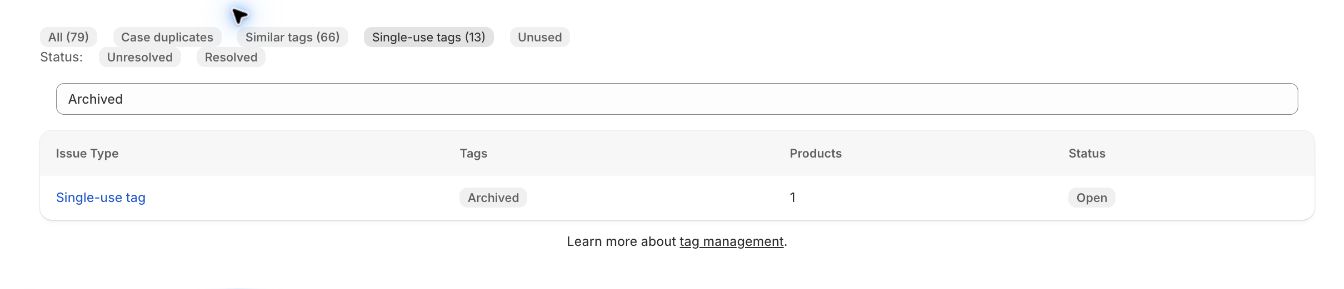
The captured Archived finding below concerns one product. It illustrates why an unusual tag deserves investigation rather than automatic deletion. The same principle applies to a similar-name finding: check the products and business purpose before confirming a mutation.
How this guide was checked
Instructions and examples reviewed by SHWRK.
- Shopify desktop tag steps were checked against the primary documentation linked below. TagTidy control names and mutation scope were checked against the current implementation.
- The import table is an illustrative example. The screenshot is an actual October 15 development-store finding; it does not show a completed merge.
Sources and further reading
Shopify behavior can change. Consult the current documentation and your store settings before making changes.
See where TagTidy fits
Review inconsistent Shopify product tags and affected products, then confirm merges or removals with TagTidy. Read practical tag cleanup guides.